
There are 2 ways to do this:
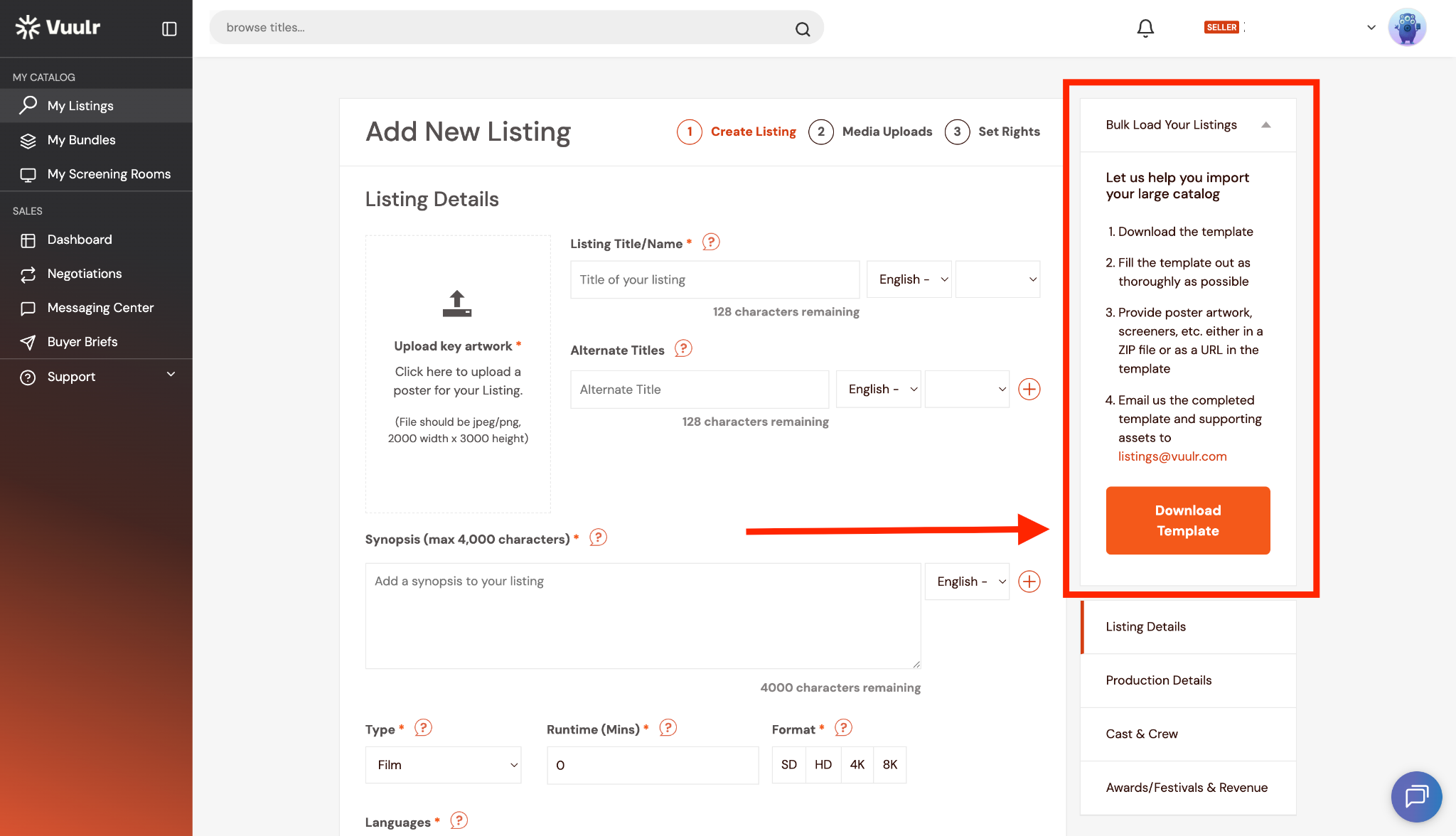
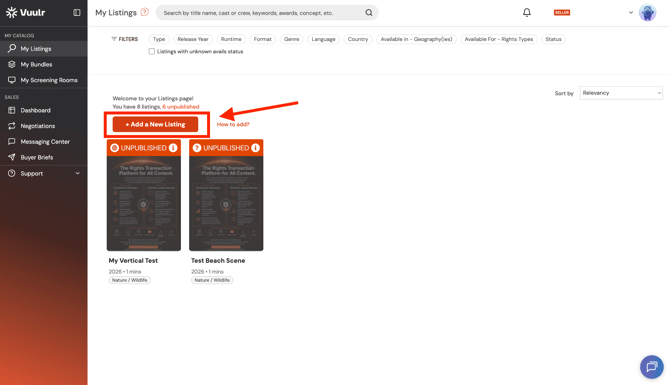
1. Our Content Operations can do it for you, in bulk update.- Download the Vuulr Listing Template from the “Add a New Listing” Page
- Fill out the avails information and make sure no important details are missing.
- Email listings@vuulr.com with the completed template
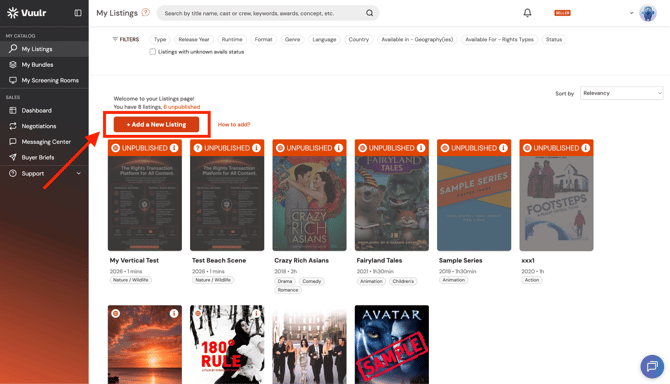
2. You do it yourself. This is faster if you have a handful of titles. If you choose this option, please read on..
Then, the way to add Avails to your Listing(s) depends on whether you have already created the Listing or not:
If created already:
Step 1: Login to your Vuulr account from Vuulr.com
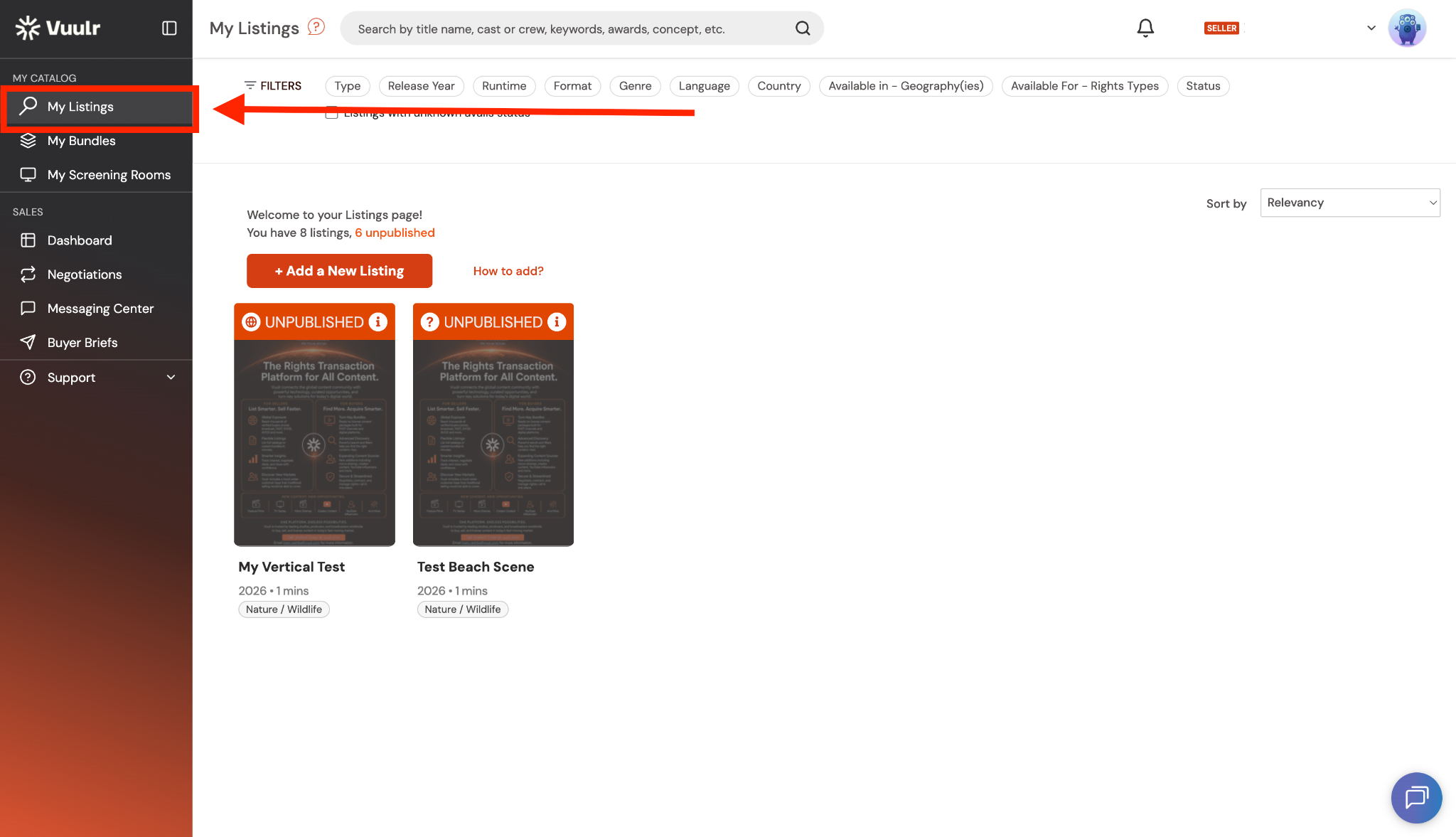
Step 2: Click "My Listings" on the left side panel
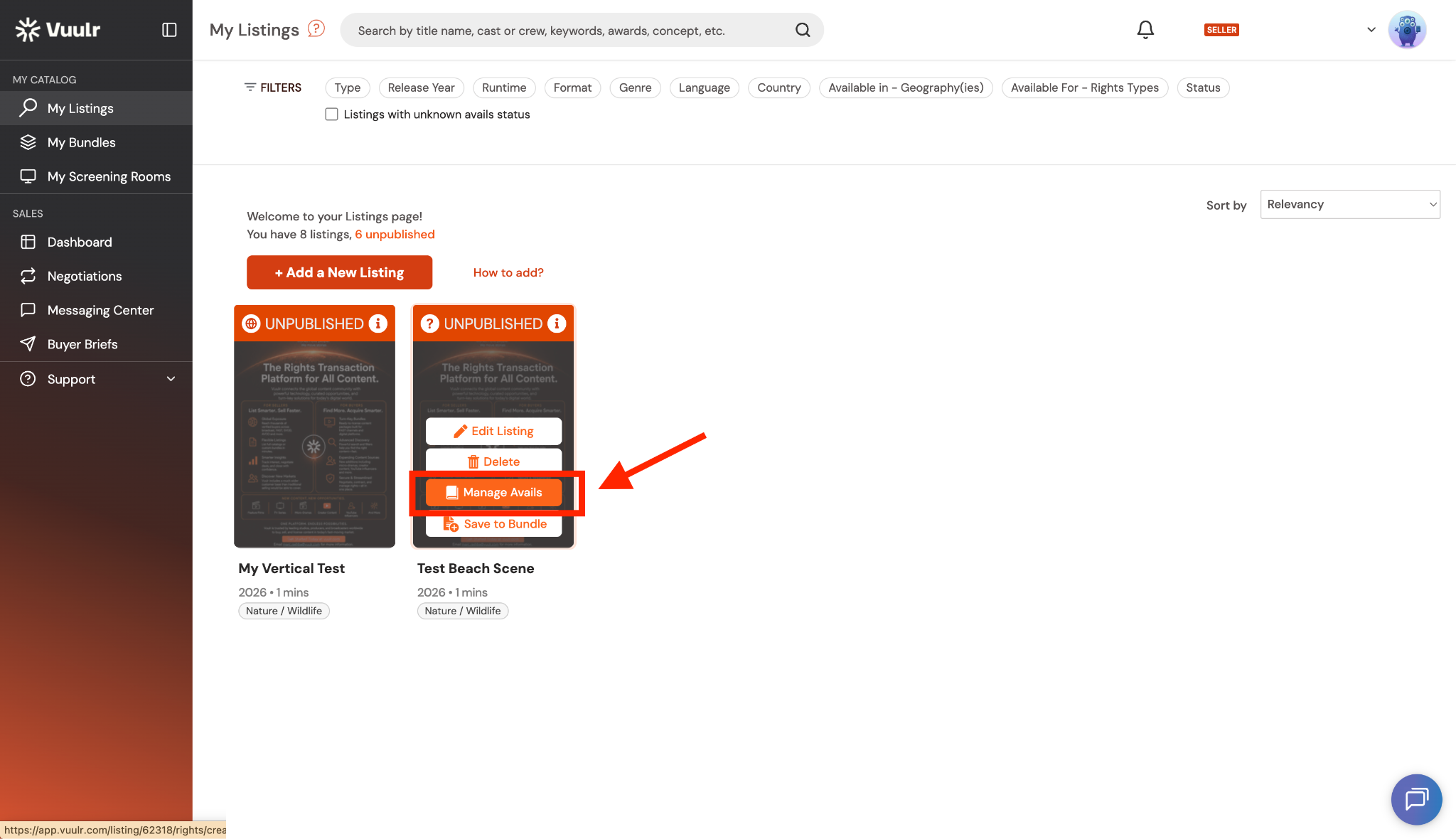
Step 3: Mouse-over the title for which you want to edit its Avails, and click Manage Avails on the thumbnail
Now skip to Step 4
If not created already:
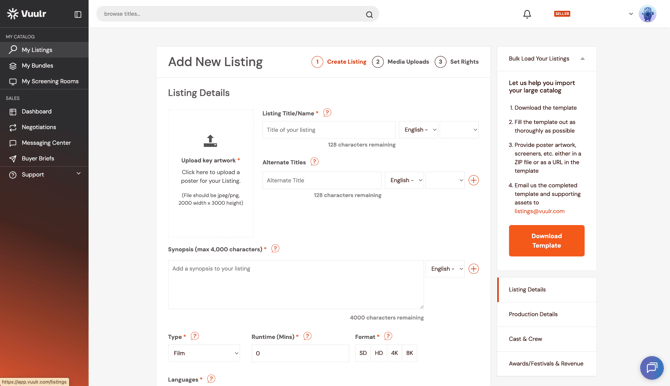
- Click Add a New Listing on the My Listings page.
- Fill out all required fields and upload the poster and at least one trailer or screener.
- On Page 3 – Set Rights, you can add the Avails
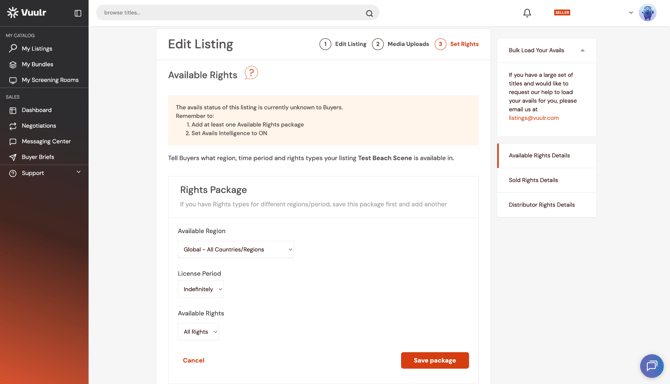
Step 4: From here you can now add the Avails to the title
You can also add or update the regions where the title is AVAILABLE, the LICENSE PERIOD, the AVAILS RIGHTS and the rights type.
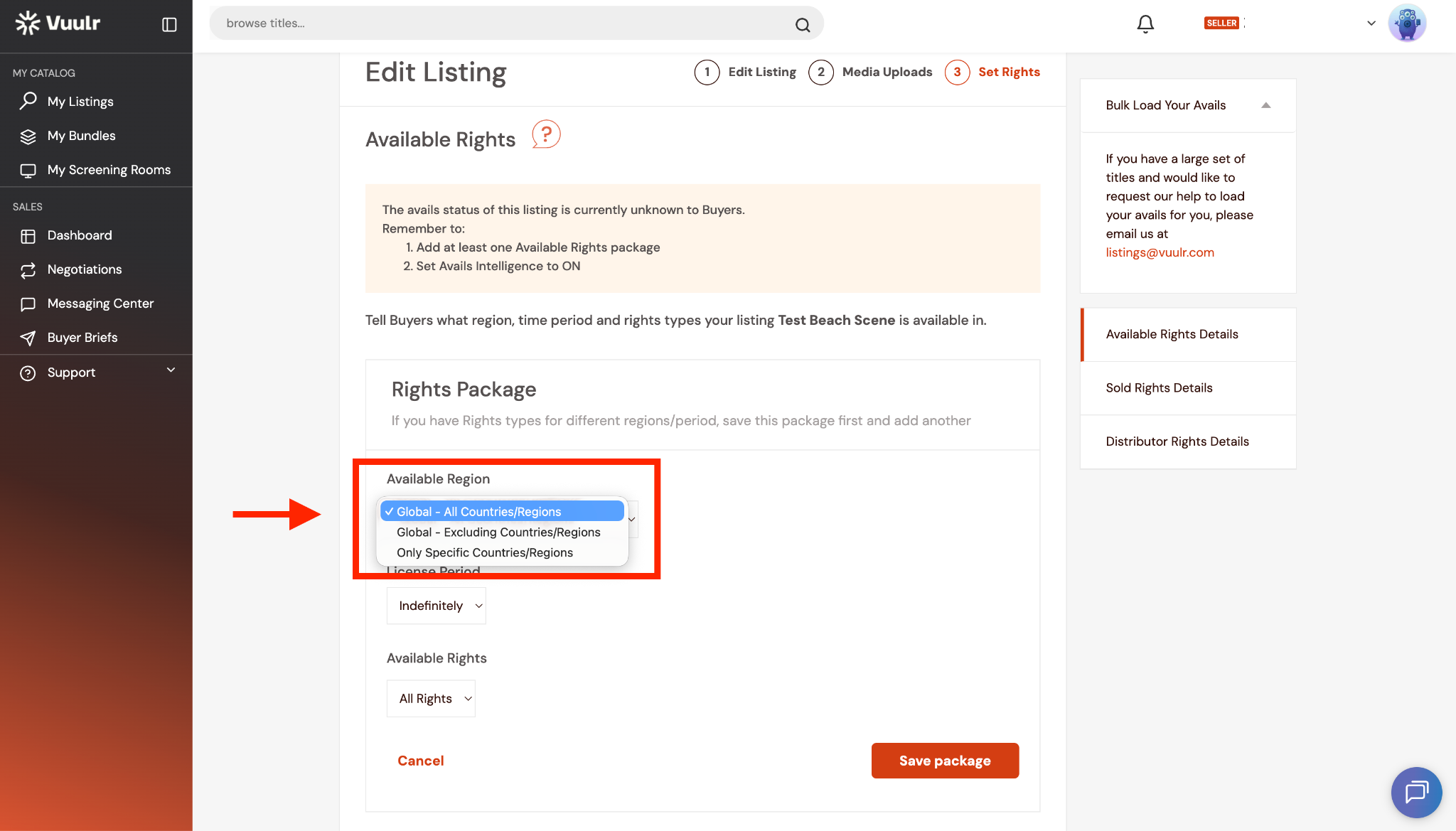
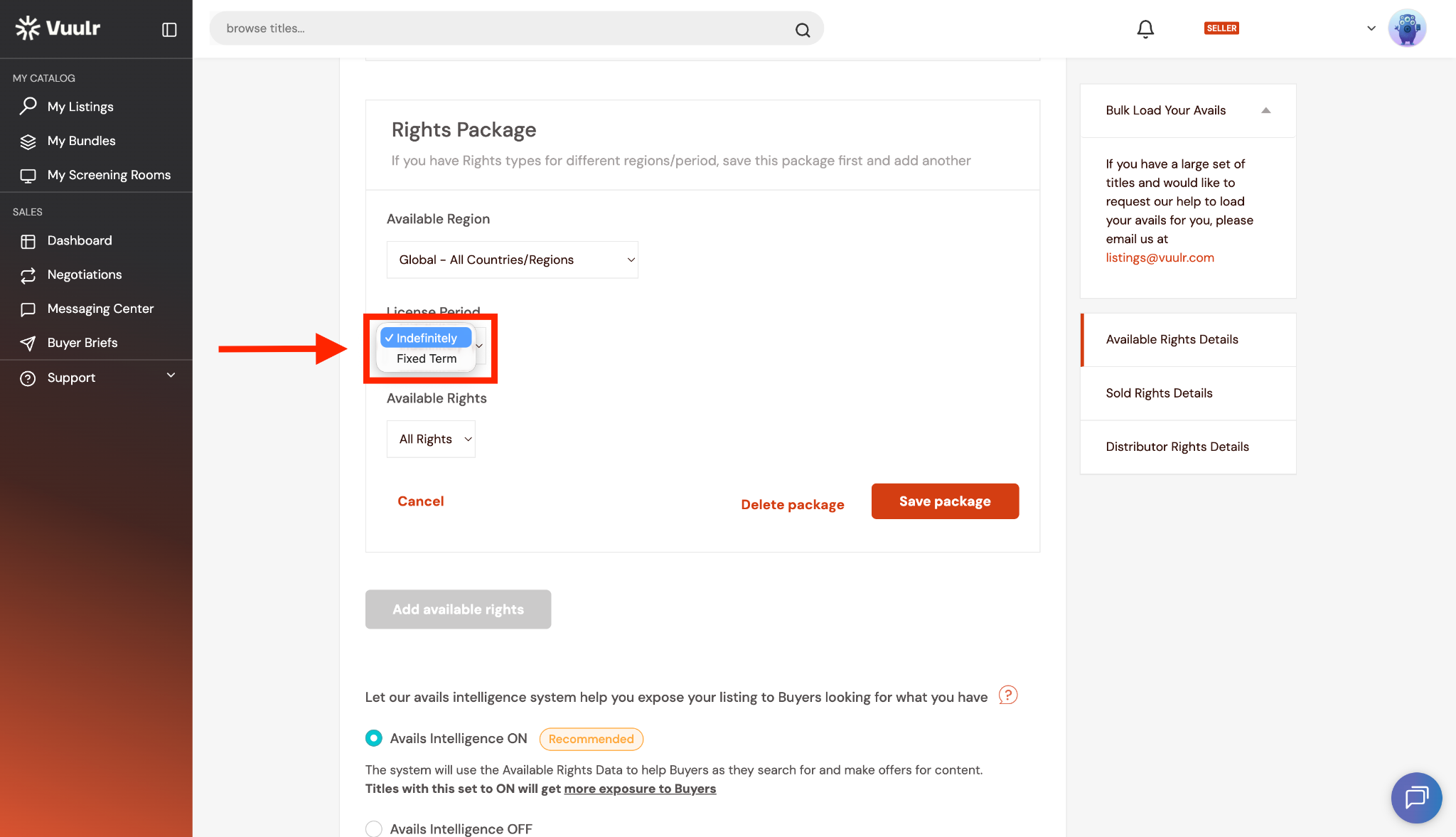
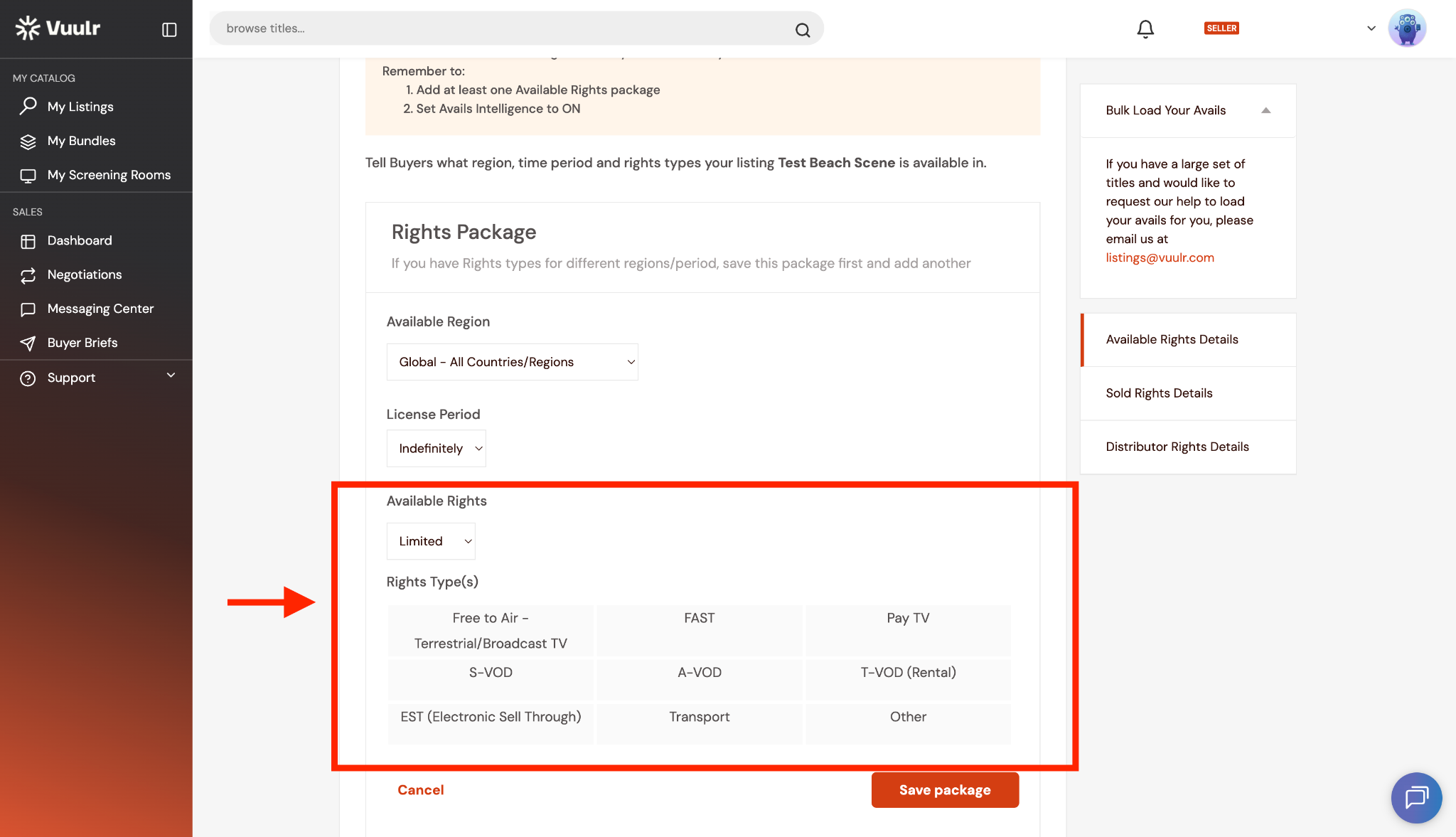
You can add Available Rights for the content or add Sold Rights Packages. Any rights that are not included in the sold rights package will still be available to buyers.
Alternatively, if you add the available rights, those will be the rights that buyers can make an offer for. You can also add multiple Available Rights and Sold Rights Packages.
Once you are happy with the Avails detail, click SAVE PACKAGE.
Remember that if you sell through, your Avails are automatically updated! Another good reason to keep all your distribution on Vuulr!