
As a Seller, you can create groupings of your Listings to act as Bundles for sale in the marketplace, and for promotion to Buyers, registered or not*. For Buyers, this is another entry point to making Offers on your Listings or Catalog.
Bundles are beneficial in many ways:
- A bit like Screening Rooms, you can create as many as you like, themed by genre, theme or I.P.
- They aim to increase your revenues, versus selling individual titles, as you’re “checking out” more in one go
- They open up the newest classes of Buyers (e.g. FAST channels)
- You can upsell Buyers during an Offer process, again increasing your revenues for each sale
- And they’re another way to promote yourself outbound to Buyers
In this article, we'll cover how to create a Bundle(s) and show you how to promote one.
Creating a Bundle
First ensure you have a good amount of titles already listed, in order to fill a Bundle amply. Some FAST channel owners may need 100hours in 1 checkout (which our tech enables), so we would advise at least 10 hours.
And there is no point creating Bundles of 1 or 2 titles; you may as well leave them as individual Listings - and promote them with their unique URLs - and save the effort.
Once listed, you can jump into this process in two places:
- My Bundles: to create new ones, or edit existing ones
- My Listings: if you simply want to add to existing Bundles you’ve created
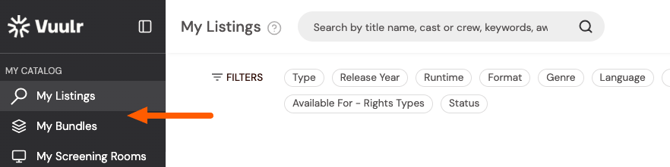
For a)
1. Navigate to My Bundles in the left menu
2. Then Create New Bundle (or click to open add to an existing one, and click Edit to amend it)
3. Follow the steps in the builder including entering:
- a Title
- an image to represent the Bundle to the Buyer
- a description of the Bundle, and
- Keywords
4. Then look to the main panel to the right, and click Add Listings to fill the Bundle with your published Listings
Once done, click Save - to save as a Draft, before Publishing live - or Save and Publish to make it fully live for immediate sale in the marketplace.
For b):
1. Navigate to My Listings in the left menu
2. Mouse over the poster of the published Listing you want to include in your (new) Bundle
3. Click Save to Bundle, choose a Bundle from the drop-down, or create a new one
And repeat until you feel the Bundle is ready. Done!
Promoting Your Bundle
We generate a unique link for each Bundle you create which you can drop into a promotional email blast to a set of Buyers, or a one-on-one Whatsapp message.
1. Go to My Bundles and select the Bundle you wish to share and promote
2. And click the square icon with an arrow leaving it. This copies a unique link of your Bundle to your clipboard which you can then paste anywhere.
* Only vetted registered Buyers may Offer on your Bundles; unregistered Buyers can preview but will have to register (for free, no barrier) if they wish to Offer.