
You can either add a YouTube or Vimeo embed link (the video must not be password-protected or private), or upload the video directly, as long as the file size does not exceed 2GB.
We recommend uploading the video directly, as embedded links remain dependent on the hosting platform, and any changes to the hosted video or platform may affect the viewing experience on Vuulr.
Rest assured that directly uploaded files are secured through our player and can only be viewed by registered buyers who have been carefully approved by Vuulr.
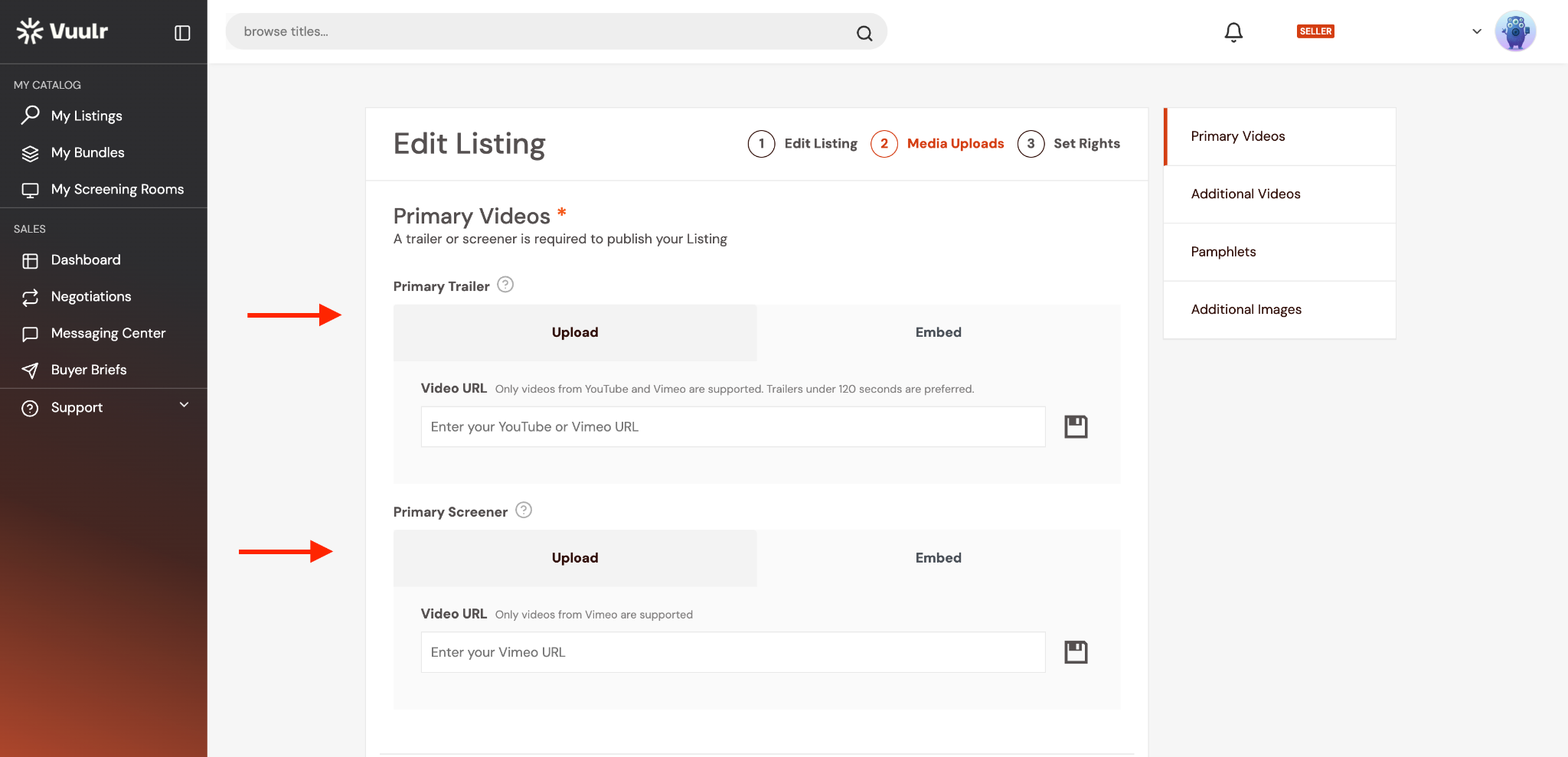
Add a Vimeo or YouTube embed link.
- Click the Embed button.
- Paste your link into the designated field.
- Review the link to ensure it is correct.
- Click Save to confirm and apply the changes.

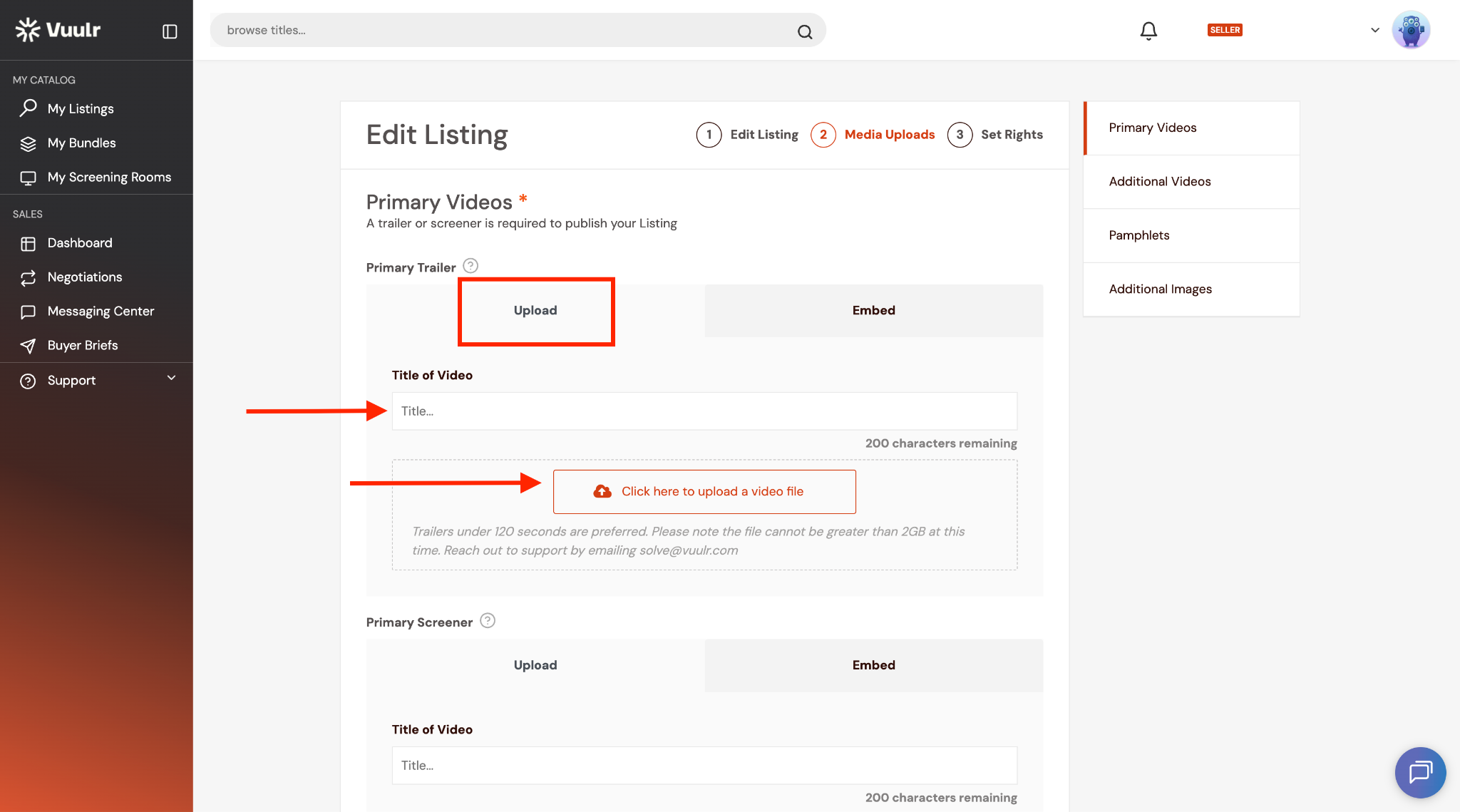
Upload a Video file.
- Click the Upload button.
- Select the video file you would like to upload from your device. Please ensure the video file does not exceed 2 GB.
- Add the video title.
- Wait for the video to finish uploading.
- Click Save to complete the upload.
- Navigate to the actual listing and review the uploaded video to ensure it appears correctly.
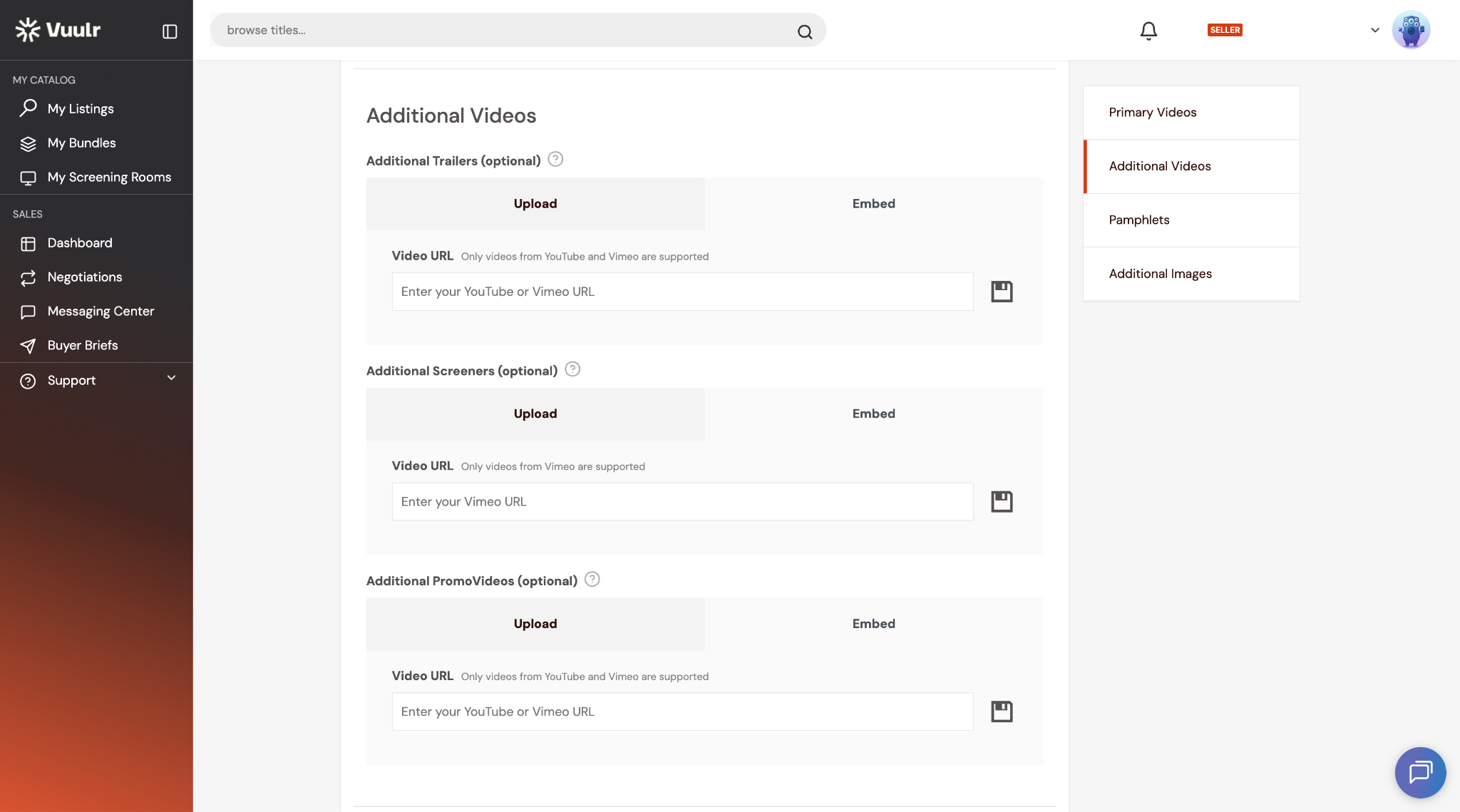
Additional Trailers, Screeners, or Promo Videos
If you have additional trailers, screeners, or promotional videos you would like to include, you can add them in the Additional Videos section. This step is optional.
Follow the same steps mentioned above to either embed a video or upload a video file.
Tip: Adding additional video content is optional, but it can help provide viewers with more promotional material, previews, trailers, or screeners.
For bulk uploads (more than 10 titles), you can read this article step 2.