
From your left menu, you find the Buyer Briefs tab. Here you can see a list of Open briefs posted by Buyers actively looking for content. The Buyer is not revealed yet, so the Briefs could be from many different organizations.
The far right of the page shows you the status of each Buyer Brief:
"Open" briefs are currently open for Sellers to respond to.
"Closed" are not.
The full details of each Buyer Brief are viewable when you click into each one. The Content of Interest outlines the requirements specified by the Buyer, so please read this section carefully and propose only relevant listings that meet the criteria and avails required. See the risks of ignoring this below!
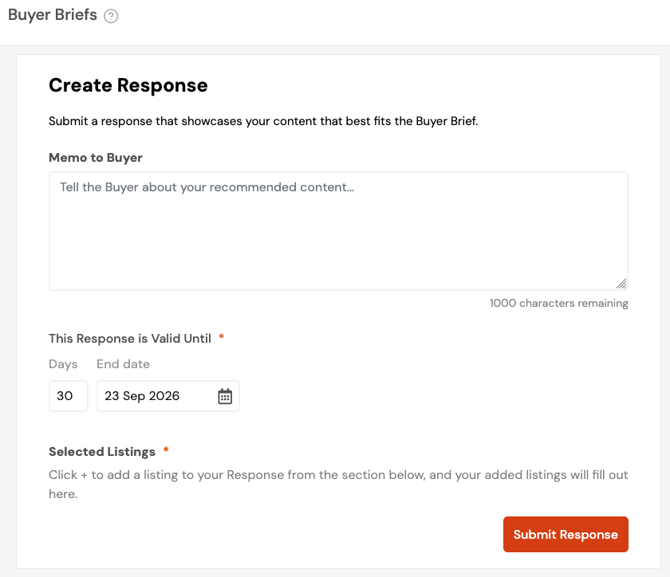
How to respond
Add a message introducing your title ideas, set an expiry date, by when the Buyer must respond (we know you don’t want to be kept waiting either!), and then scroll down to start to "Add a Listing" relevant to the Buyer's needs. If you haven’t created any Listings, then you must do this first. Please read our section How to upload content.
We have pre-filtered your Listings to the specified genre in the Buyer Brief for you. Feel free to apply other filters or start a search in the search box, to look for the content that matches the Buyer's requirements.
If you try to attach a Listing that does not match all the Buyer’s criteria, we alert you to this before you submit, as:
- The Buyer has a filter to include/exclude responses that are exact matches. So your response may be rendered invisible by a time-poor Buyer
- Even if they include inexact matches, this may result in the Buyer dismissing obviously mismatched idea(s) very quickly
- Or worse, they ignore anything from you in the future
The alert could of course be triggered by an innocent mistake. Our matching logic looks at your Listing’s metadata, so if that is incomplete, you can simply tweak that and proceed with an exact match.
Please do not try to game the system as fake metadata will only be exposed later in the journey, and again could alienate you from potential Buyers.
EXAMPLE
A Buyer is looking for something in the Animation genre.
You have an animation listing that you wish to pitch, but in your metadata, you have selected the genre as Adventure only. Our system will detect that this is not an exact match, and you will see the reminder popup.
Check the “Response Strength” as you go at the top of the form. When all the Listings match the Buyer’s Content of Interest exactly, you will see a tick!
Note that these are the metadata that we use in the Response Strength matching logic:
1. Genre
2. Type
3. Release Year
4. Language, if specified
5. Format, if specified
Having understood the risks above you may, however, override the alert and continue to add the mismatched Listing.
When you are ready, click Submit!
What happens after sending a response?
1. When the Buyer has viewed your response, you will see the indicator change to "Buyer has viewed"
2. If you have sent a response but the Avails have become unavailable, or any other situation has occurred where you need to retract your response, click "Withdraw response" to inform the Buyer.
3. You can always send another response if you need to, the button is at the foot of the Brief in the right panel.
4. If the Buyer likes your response, they will send you an Offer, and you will be notified by email as usual. You will also see a new Notification in the bell icon, or you can check your Dashboard or Negotiations page.
5. The Buyer may also ask questions via chat - you will see a new message in the bell icon on the top right corner, and the message(s) will be in your Messaging Center.
6. To ensure that you are notified of incoming Offers and Messages, go to your profile settings and enable the best Notifications for you.
7. If the Buyer declines your response, you will again be notified by email. You will also see the buyer's Decline Reason on your response page.
How do I check which Briefs I have responded to?
On the Buyer Briefs page, look for the Status filter on the top right corner, and filter for "Open/responded" or "Closed/responded".